Every sold-out product page on your store is a leak. A shopper wanted the item, found it unavailable, and left with no reason to come back. Back-in-stock alerts close that leak: you capture the shopper's email while they're still interested, then bring them straight back the moment the product returns.
Here's how to set them up on Shopify, and what separates a setup that recovers sales from one that just collects addresses.
What do you need before you start?
Three things, and all of them are probably already true:
- An Online Store 2.0 theme. Dawn and every other OS 2.0 theme supports app blocks, which is how a modern notify-me form gets onto your product page without touching Liquid. If you're on a legacy vintage theme, app blocks aren't available and you'd be looking at a code change instead.
- Inventory tracking switched on for the products you care about. Alerts are triggered by an inventory quantity crossing zero, so a product set to "continue selling when out of stock", or one with tracking disabled entirely, never produces a sold-out state to react to.
- A sender email you control. Alerts should come from your store, not a generic no-reply on someone else's domain.
That's it. No code, no theme duplication, no developer.
Where should the signup form actually go?
On the sold-out product page itself, in place of the disabled "Add to cart" button. That's the only moment you have the shopper's attention on that specific product, and it's the moment they're about to leave.
Anywhere else costs you signups. A form in the footer, a link to a separate "notify me" page, or a popup that fires on exit are all asking the shopper to do extra work at exactly the point they've decided to go. The form should appear where the buy button would have been, and it should look like it belongs to your theme rather than like a bolted-on widget.
With Restocked the form is a theme app extension, so you add it from the theme editor:
- Open Online Store → Themes → Customize.
- Switch the preview to a product template and pick a product that's currently sold out, so you can see the form in place.
- In the product information section, choose Add block and pick Restocked: Back in stock.
- Drag it directly under the buy button, so it lands where "Add to cart" would be.
- Set the heading ("Out of stock? Get notified." by default) and the button label ("Notify me" by default) to your own wording.
- Optionally set the border, button background, and button text colours. Everything else, including the fonts, is inherited from your theme.
- Save.
The block only renders on products that are actually out of stock, so it stays invisible on everything else and you don't need conditional logic or a separate template.
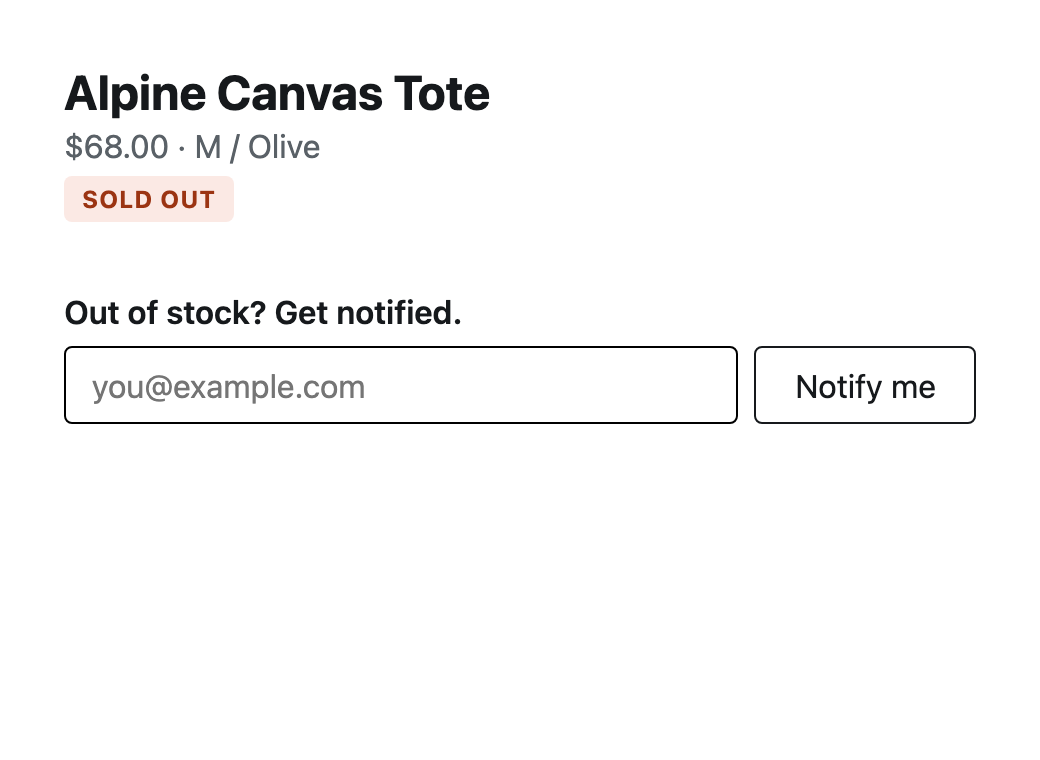
That's the whole shopper-facing surface. No modal, no redirect, no account required.
Should you capture demand per product or per variant?
Per variant, always. A shopper waiting on size M is not the same lead as one waiting on size L, and treating them as one list causes two distinct failures.
The first is a bad customer experience: you email everyone the moment anything comes back, and the person who wanted M gets told the product is available when only L was restocked. They click, find the size still gone, and learn to ignore your emails.
The second failure is that you throw away your best reordering data. "Forty people want this product" is mildly interesting. "Thirty-one of the forty want size M" tells you exactly what to put on the purchase order.
How do you make sure the emails actually go out?
The setup that fails is the one that needs you to remember it. You restock, get busy, and the emails never go out. Any process that ends in "then go into the app and click send" will eventually be the reason a restock didn't recover anything.
Restocked listens to Shopify's inventory webhooks directly. Update stock the way you already do, whether from admin, a CSV import, or a fulfillment app, and it detects the change, sums inventory across all your locations, and queues alerts to everyone waiting. Nothing to click, and emails go out within minutes for a normal waitlist. A very large restock is queued and sent progressively rather than all at once, so the send stays inside what mailbox providers will accept from your sending domain.
Two details worth understanding, because they're where naive implementations get it wrong:
Summing across locations. If you hold stock in three locations and one of them briefly reports a positive quantity during a transfer, a system watching a single location will fire alerts for stock that isn't really available. Restocked adds up every location before deciding anything is back.
Not re-alerting the same person twice. Once someone has been emailed for a variant, they come off that waitlist. Inventory numbers move constantly, and a system that treats every upward tick as a fresh restock will email the same shopper repeatedly for one event.
What makes a back-in-stock email that recovers the sale?
The email is the part that actually converts, and most of its job is done before anyone reads it.
- Send from your store. A branded sender name and your own message, not a generic no-reply. The shopper signed up days or weeks ago; they need to recognise who this is instantly.
- Name the exact variant. "Your size is back" beats "an item you wanted is available." The shopper asked about one specific thing.
- Link straight to the product, not to a category page or the homepage. Every extra click loses people.
- Keep it short. This is a notification, not a newsletter. The shopper already wants the thing.
- Make it accountable. Every send should get a per-recipient delivery receipt: queued, sent, delivered, or bounced. Failed sends stay visible and retryable, so a delivery problem never silently costs you the sale.
- Keep it compliant. An unsubscribe link in every email, plus GDPR webhooks for data requests and erasure.
That last pair matters more than it sounds. Back-in-stock emails are transactional in spirit but they are still email: if you can't see what bounced, you can't tell the difference between "nobody bought" and "nobody received it."
How do you use the waitlist to decide what to reorder?
The list of who's waiting, and for which variant, is a demand signal you can't get anywhere else. Your sales data only tells you what people successfully bought. The waitlist tells you what they wanted and couldn't have.
Read it in three ways:
- By total count, to rank what to restock first.
- By variant split, to size the order rather than just place it.
- By age, because a waitlist that's been sitting for four months is a different signal from one that filled up last week. Old demand may have gone elsewhere; recent demand is still live.
Export it as CSV anytime. The addresses are yours.
What usually goes wrong?
Five failure modes, in rough order of how often they bite:
- The form isn't on the product page. Signups collapse when it lives anywhere else.
- Alerts are per product, not per variant, so people get emailed about restocks that don't include what they wanted.
- Nothing is automated, and the send depends on someone remembering.
- Nobody checks deliverability. Without per-recipient delivery states, a bounce problem looks exactly like a demand problem.
- The bill scales with the send. On usage-priced apps the biggest restock costs the most to announce, which quietly discourages exactly the sends worth making. We went through the real numbers on that in flat pricing vs pay-per-notification.
What it costs
Restocked is one flat plan: first month free, then $14.99/month, everything included: every product, every notification, no tiers and no per-notification billing. Most back-in-stock apps charge by notification volume, which punishes exactly the restocks that recover the most sales.
Ready to stop losing sold-out demand? Restocked is launching soon on the Shopify App Store.